Configure On-Premises Firewall Management Center-Managed Threat Defense Devices

This chapter provides steps to configure On-Premises Firewall Management Center-managed Threat Defense devices.

View onboarded On-Premises Firewall Management Center

This task enables you to view onboarded On-Premises Firewall Management Centers, manage high-availability pairs, and cross-launch directly to management center nodes.

Use this procedure when you need to access and manage onboarded On-Premises Firewall Management Centers in your Security Cloud Control Firewall Management environment. This includes viewing high-availability configurations and cross-launching to specific management center nodes.

Procedure


Step 1

From the Security Cloud Control Home page, click Firewall.

Step 2

Choose Tools & Services > Firewall Management CenterAdministration > Integrations > Firewall Management Center.

Step 3

Click the FMC tab.

Step 4

View the On-Premises Firewall Management Center high-availability pair in the Services page.

When you expand the pair, you can see the primary and secondary On-Premises Firewall Management Center nodes and their current statuses.

Step 5

To cross-launch the active On-Premises Firewall Management Center, check the corresponding high-availability pair in the Services page.

Step 6

Click the option you want to open in On-Premises Firewall Management Center.

The Verify FMC Cross Launch URL window is displayed. By default, the public IP address or FQDN of the currently active On-Premises Firewall Management Center is shown and will be used to open On-Premises Firewall Management Center. If necessary, specify the URL of the standby On-Premises Firewall Management Center to launch it.

Step 7

To cross-launch to a specific On-Premises Firewall Management Center node, expand the high-availability pair and click primary or secondary On-Premises Firewall Management Center node you want to launch.

Step 8

In the External Links pane, click FMC Cross Launch URL to cross-launch the selected On-Premises Firewall Management Center.

To update the public IP address or the FQDN and the port number of your On-Premises Firewall Management Center hover over the FMC Cross Launch URL and click the edit icon.

Add cross-launch URLs to each On-Premises Firewall Management Center node. When you launch from the pair, only the active node is launches. Verifying which node is currently active is not necessary.


Note


If high availability is broken or roles are switched on On-Premises Firewall Management Center (version 7.4.x or earlier), disable the SecureX integration, then enable it again on the secondary On-Premises Firewall Management Center. To complete this task, navigate to the secondary On-Premises Firewall Management Center and choose the appropriate option.

If you break a high-availability On-Premises Firewall Management Center pair, the participating management centers become two standalone On-Premises Firewall Management Centers.


You can view and manage onboarded On-Premises Firewall Management Centers and cross-launch to either the active node in a high-availability pair or a specific management center node.
Discover and manage On-Premises Firewall Management Center network objects

Enable object discovery and management for On-Premises Firewall Management Centers so you can share and manage network objects across platforms managed by Security Cloud Control.

If you have an On-Premises Firewall Management Center that you manage using Security Cloud Control and you want to share and manage its objects, perform this procedure.

Procedure


Step 1

Choose Tools & Services > Firewall Management CenterAdministration > Integrations > Firewall Management Center to view the Services page.

Step 2

If you have already onboarded an On-Premises Firewall Management Center to Security Cloud Control, select it.

If you want to onboard a new On-Premises Firewall Management Center, see Onboard an On-Prem Firewall Management Center.

Step 3

Choose Settings from the Actions pane.

The Actions pane does not appear when you select more than one On-Premises Firewall Management Center.


Note


You must be an admin or super admin to use Settings.


Step 4

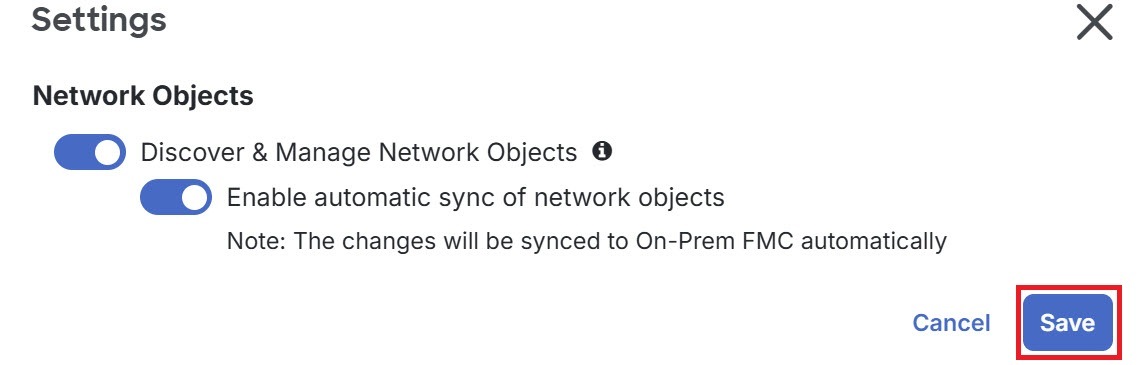
Enable the Discover & Manage Network Objects toggle button. To automatically synchronize your changes with On-Premises Firewall Management Center instead of staging them for review, turn on the Enable automatic sync of network objects toggle button. Then, click Save.

Settings menu displaying Network Objects discovery and automatic sync options are enabled. A Save button is also visible.


Note


  • You cannot enable the Discover & Manage Network Objects toggle button if the selected On-Premises Firewall Management Center has one or more child domains or if it has the Change Management workflow enabled.

  • You cannot enable the Enable automatic sync of network objects toggle button if the Discover & Manage Network Objects toggle button is disabled.


For every new On-Premises Firewall Management Center onboarded to Security Cloud Control, this toggle button needs to be enabled manually. After you enable this option, Security Cloud Control discovers objects from your On-Premises Firewall Management Center. You can then share and manage these objects, and use them to set consistent object definitions across other platforms managed by Security Cloud Control.

In Security Cloud Control, when you add overrides to objects that are discovered from an On-Premises Firewall Management Center and push the changes back, these objects can now be overridden, even if overrides were not allowed previously. The Allow Overrides check box in the View Network Object window is selected automatically when an override is added from Security Cloud Control.


Note


If you want to assign already-existing objects in Security Cloud Control to your On-Premises Firewall Management Center, choose the On-Premises Firewall Management Center and click Assign Objects from the Actions pane.


The discover and manage network objects feature is enabled for the selected On-Premises Firewall Management Center, allowing Security Cloud Control to discover and manage its network objects.