Lists the procedures for configuring AppNav-XE on Cisco XE SD-WAN devices.
Perform the following procedures to configure AppNav-XE on Cisco IOS XE Catalyst SD-WAN devices.
Cisco Catalyst SD-WAN AppQoE Configuration Guide, Release 26.x and Later
Cisco Catalyst SD-WAN AppQoE Configuration Guide, Release 26.x and Later
Lists the procedures for configuring AppNav-XE on Cisco XE SD-WAN devices.
Perform the following procedures to configure AppNav-XE on Cisco IOS XE Catalyst SD-WAN devices.
This topic describes how to access Cisco WAAS Central Manager (WCM) and register WCM as a third-party controller on Cisco SD-WAN Manager. It also describes how to attach an Cisco IOS XE Catalyst SD-WAN device to the WCM partner through Cisco SD-WAN Manager.
Integrate WCM with vManage.
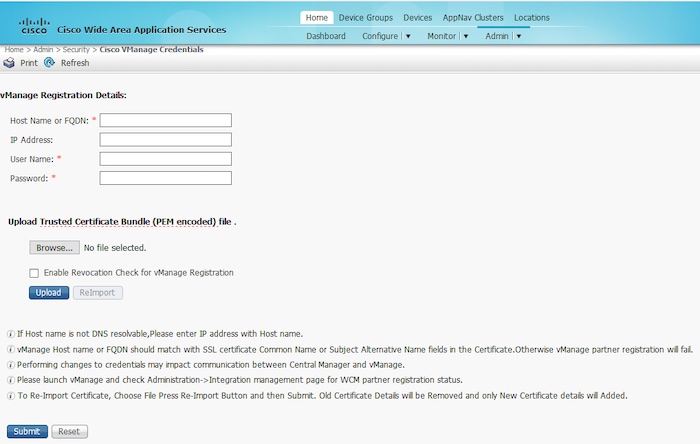
To register using a Fully Qualified Domain Name (FQDN), enter the FQDN in the Host Name field. The IP Address field should remain empty.
Once integrated, the WCM partner can be seen from the Cisco SD-WAN Manager menu by choosing .
To configure AppNav-XE on the device, register the device in WCM next.
The device being registered should be in Manager mode in the Cisco SD-WAN Manager GUI.
The device being registered must have HTTPS configuration attached to it. The HTTPS configuration can be attached to the device using the Global Settings template in Cisco SD-WAN Manager.
From Cisco SD-WAN Manager menu, choose .
Click Feature Templates then click Add Template.
In Cisco vManage Release 20.7.x and earlier releases Feature Templates is called Feature.
Under the Basic Information area in the right pane, choose the Global Settings template.
Click Services.
For both the fields—HTTP Server and HTTPS Server, from the drop-down list, choose Global and choose On.
Enter the requested details and click Register.
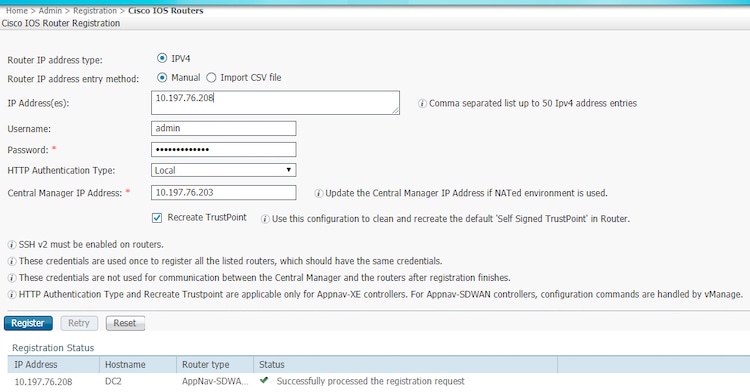
The registration status of the device is displayed in the lower part of the screen.
Use these references to configure AppNav-XE clusters for SD-WAN. The configuration follows the non-SD-WAN procedure, with SD-WAN differences identified in the linked guide.