CLI users
A CLI user is a user account that
-
can be added as internal users or as external users on a LDAP or RADIUS server,
-
is maintained separately on each managed device, and
-
requires separate configuration for access to the Firewall Management Center versus managed devices.
User account separation
When you add a user to the Firewall Management Center, that user only has access to the Firewall Management Center; you cannot then use that username to log directly into a managed device. You must separately add a user on the managed device.
User passwords
This reference describes the rules and requirements for passwords on internal user accounts for the Firewall Management Center, with Lights-Out Management (LOM) enabled or disabled. Different password requirements apply to externally authenticated accounts and to systems with security certification compliance enabled. Refer to External authentication configuration for Firewall Management Center and Security certifications compliance for more information.
During Firewall Management Center initial configuration, the system requires the admin user to set the account password to comply with strong password requirements. For physical Firewall Management Centers, the system uses the strong password requirements with LOM enabled. For virtual Firewall Management Centers, the system uses the strong password requirements with LOM not enabled. The system synchronizes the passwords for the web interface admin and CLI access admin. After initial configuration, the web interface admin can remove the strong password requirement. However, the CLI access admin must always comply with strong password requirements with LOM not enabled.
|
LOM Not Enabled |
LOM Enabled |
|
|---|---|---|
|
Password Strength Checking On |
Passwords must include:
The system checks passwords against a special dictionary containing many English words and other character strings that could be easily cracked with common password hacking techniques. |
Passwords must include:
The rules for special characters are different for each series of physical Firewall Management Centers. Choose special characters only from the list in the final bullet. Do not include the user name in the password. The system checks passwords against a special dictionary of English words and character strings that can be easily cracked with common password hacking techniques. |
|
Password Strength Checking Off |
Passwords must include the minimum number of characters configured for the user by the administrator. (Refer to Add or edit an internal user for more information.) |
Passwords must include:
The rules for special characters vary between different series of physical Firewall Management Centers. Use only the special characters from the permitted list. Do not include the user name in the password. |
Users and domains
A user account is an access entity that
-
can be created in any domain where Administrator access is assigned
-
is only visible in the domain in which it is created, and
-
can have different privileges and roles in ancestor and descendant domains.
User roles and domain management
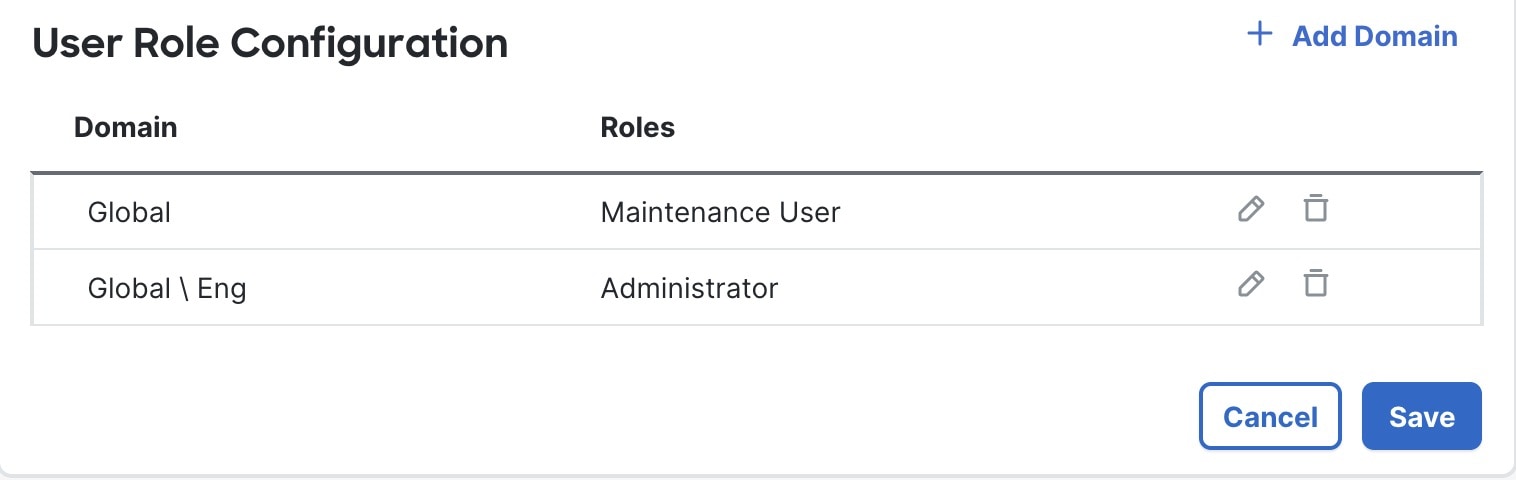
Users can have different privileges in each domain, and user roles can be assigned in both ancestor and descendant domains.
-
Assign read-only privileges to a user in the Global domain.
-
Assign Administrator privileges in a descendant domain.
User visibility in domains
Users are only visible in the domain in which they are created. If a user is added in the current domain but assigned a user role in a subdomain, the user will only show on the current domain's Users page.


User login procedures
Users added from the Global domain log in with just their username, even if their roles are only in a subdomain.
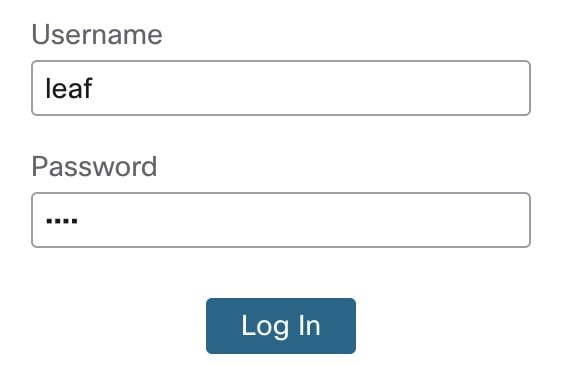
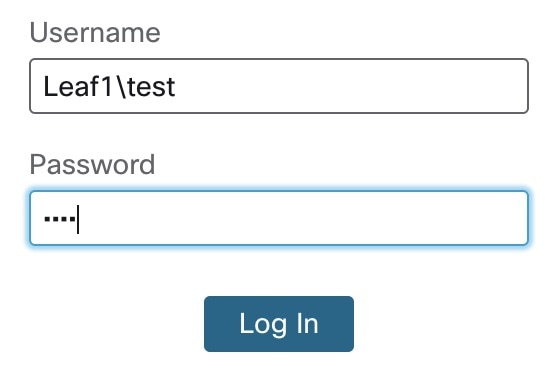
When you log in, you are placed in the domain where your username was added. For example, the admin user defaults to the Global domain.
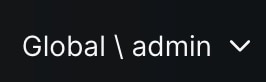
After you log in, click the down arrow to change to a subdomain.
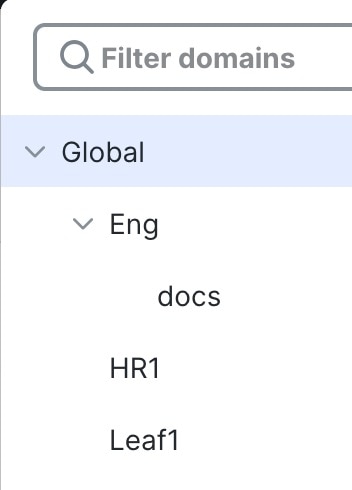
User account examples in domains
For example, from the Global domain, you add user leaf and assign a role for Leaf1. Because the user was added from the Global domain, it is visible from the Global domain. If you change domains to Leaf1, you cannot view the user leaf, but you can view the user test, which was added directly from the Leaf1 subdomain.









 Feedback
