3504 Wireless LAN Controller Temperatures Q&A

Available Languages
Contents
Introduction
This document describes typical questions and answer around temperature concerns on the 3504 WLC.
Q. What are acceptable temperatures for a 3504 WLC?
A. There are 5 important temperatures for 3504 WLC. Their minimum and maximum values and description can be found in the table bellow:
| Temperature | Min | Max | Description |
| Internal temperature | -10°C (14°F) | 80°C (176°F) | Temperature of the chip itself |
| External temperature | -10°C (14°F) | 71°C (160°F) | Temperature inside the chassis of the device |
| mGig port temperature | -10°C (14°F) | +71°C (160°F) | Temperature of the mGig port (port 5) |
| Operating temperature | 0°C (32°F) | 40°C (104°F) | Temperature of the environment in which WLC is working in. This temperature is mentioned in the data sheet of the WLC. Not to be mixed with internal temperature. Controller has no way of measuring this. |
| Storage temperature | -20°C (-4°F) | 70°C (158°F) | Temperature in which WLC can be stored without powering it on. |
The temperature that has the biggest impact on the WLC is the internal temperature of the WLC chip. By default, fan will not turn on until it reaches ~80°C.As long temperatures are kept between the limits mentioned in the table, WLC should not have any problems. Test controllers have been running at around 75°C for months with fans turned off without any issues.
If internal, external or mGig port temperature goes outside of limits, functionality of the WLC could severely be degraded. At that time, if a controller is still up, an alarm/trap log will go off specifying that the temperatures are over the limit.
Q. How do I check controller temperature?
A. There are 3 ways to check WLC temperatures:
- From web interface
- From CLI
- Using an SNMP query
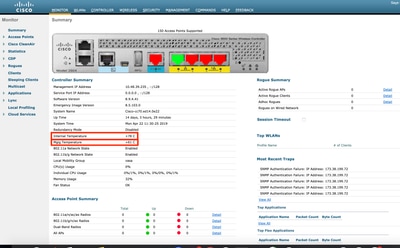
1. To check controller internal and mGig port temperature from the web interface, go to Advanced->Monitor tab:
2. To check internal temperature, external temperature and temperature of the mGig port, establish a console/ssh/telnet session to the controller. Output of the show sysinfo command will provide you with the controller's temperatures:
(Cisco Controller) >show sysinfo

Manufacturer's Name.............................. Cisco Systems Inc.
Product Name..................................... Cisco Controller
Product Version.................................. 8.9.4.41
RTOS Version..................................... 8.9.4.41
Bootloader Version............................... 8.5.103.0
Emergency Image Version.......................... 8.5.103.0

OUI File Last Update Time........................ N/A
Build Type....................................... DATA + WPS

System Name...................................... Cisco-cc70.ed14.0e22
System Location..................................
System Contact...................................
System ObjectID.................................. 1.3.6.1.4.1.9.1.2427
Redundancy Mode.................................. Disabled
IP Address....................................... 10.48.39.235
IPv6 Address..................................... ::
Last Reset....................................... Soft reset due to RST_SOFT_RST write
System Up Time................................... 14 days 3 hrs 37 mins 39 secs
System Timezone Location.........................
System Stats Realtime Interval................... 5
System Stats Normal Interval..................... 180

Configured Country............................... Multiple Countries : BE,SG
Operating Environment............................ Commercial (10 to 35 C)
Internal Temp Alarm Limits....................... -10 to 80 C
Internal Temperature............................. +78 C
Mgig Temp Alarm Limits........................... -10 to 78 C
Mgig Temperature................................. +61 C
External Temp Alarm Limits....................... -10 to 71 C
External Temperature............................. +53 C
Fan Status....................................... OK
Fan Speed Mode................................... Disable
3. Temperature of the controller can also be acquired via SNMP. The object ID (OID) of the internal temperature is 1.3.6.1.4.1.14179.2.3.1.13. WLC will have SNMP version 2 enabled by default for the community "private". Command snmpwalk can be ran natively from most Linux distributions and MacOS. Controller will respond with the integer value in Celsius degrees.
VAPEROVI:~ vaperovi$ snmpwalk -v2c -c private 10.48.39.235 1.3.6.1.4.1.14179.2.3.1.13
SNMPv2-SMI::enterprises.14179.2.3.1.13.0 = INTEGER: 70
Q. Why is the fan not turning on? How do I change the fan speed?
A. By default, 3504 WLC fan does not turn on unless internal temperature reaches 80°C. This way, controller stays quiet and can be used in an office environment. If the noise is not a problem and lower temperatures are a priority, fan speed can be changed from the CLI using the command test system fan <speed>. This comand does not persist across reboot and should be the way to go if you have overheating issues with your WLC. It offers 2 speeds, along with default and off mode:
(Cisco Controller) >test system fan ?

<State Number> Give state number: 0->Default 1->Full Speed 2->Low Speed 3->Disable

(Cisco Controller) >test system fan 1

 Starting FAN Diagnostics.

 Mode of fan set to :Full Speed

 Status of fan read from cpld register: Full Speed
Q. What are the symptoms of overheating?
A. When overheating, consequences can be unpredictable. Cisco TAC has noticed couple of reoccurring things that are caused by overheating:
- Alarm LED on the right side of the controller (the one with the bell sign) will start blinking in amber color
- Controller randomly becomes unreachable until it is rebooted, while console access still works
- Chip reaches the thermal protection limit which causes it to reload
Q. How to avoid overheating?
A. There are couple of ways to avoid overheating of the 3504 WLC:
- Increase the fan speed manually (explained above)
- Properly mounting the controller in a rack/on a desk
- Mount additional fans pointing to the WLC heatsink
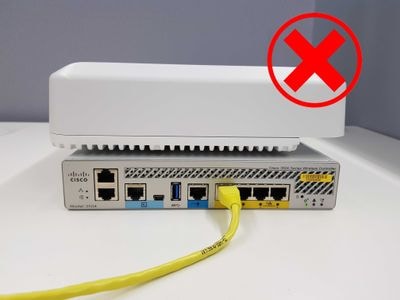
Cisco 3504 WLC has a hole mesh on the top side which is crucial for its temperature regulation and airflow. Avoid placing anything on top of it and make sure to have at least 3cm between WLC and the device above it. Additionally, you can place external fans pointing to the heatsink at the back of the WLC to increase the airflow.
Q. Why is controller's chassis hot to the touch?
A. Chassis of the device will be hot to touch during normal operation, especially the heatsink at the back of device. Avoid touching it. As long as the temperatures are kept between the limits, WLC operation and lifespan will not be affected.
Q. When should I open a TAC case? What information should be provided when opening a case?
A. A TAC case should be following situations:
- Fan is not turning on at all
- Controller is overheating while operating in acceptable environment temperatures with fan on full speed
- Temperature alarm is going off even though all temperatures of the WLC are bellow limits
When opening the case with Cisco TAC, make sure to provide following information in the problem description:
- picture of the WLC in its operating environment
- outputs of the show run-config and show traplog from WLC CLI
- screenshot or logs of alarms going off from Cisco Prime Infrastructure or syslog server
- any additional information that you think TAC engineers might find useful
Revision History
| Revision | Publish Date | Comments |
|---|---|---|
3.0 |
28-Oct-2026
|
Fixed a small note about the test system fan command |
1.0 |
02-May-2019
|
Initial Release |
 Feedback
