Introduction
This document describes how to collect logs and configuration files from Cisco Nexus Dashboard Data Broker
Environment
Access: Credentials to log in to Cisco Nexus Dashboard Data Broker with a Network Administrator role.
Cisco Nexus Dashboard Data Broker versions 3.10.x This procedure works on embedded and non-embedded deployments.
Refer to Cisco Technical Tips Conventions for more information on document conventions.
Resolution
Collect Switch Tech Support Files in Cisco Nexus Dashboard Data Broker 3.10.x
- Confirm the user account has the Network Administrator role.
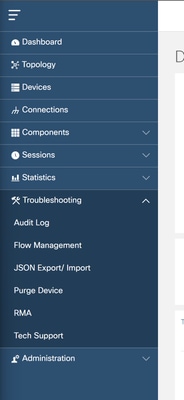
- From the Cisco Nexus Data Broker home screen, click Troubleshooting and click Tech support.
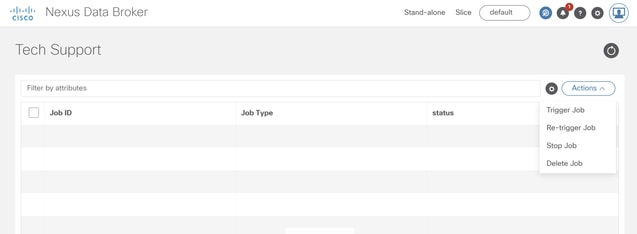
- In the Tech Support context, click the Actions drop-down menu in the top-right corner, and click Trigger Job.
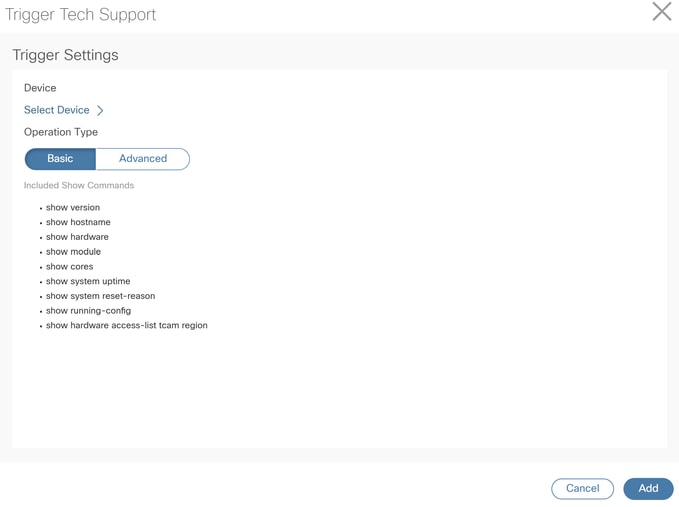
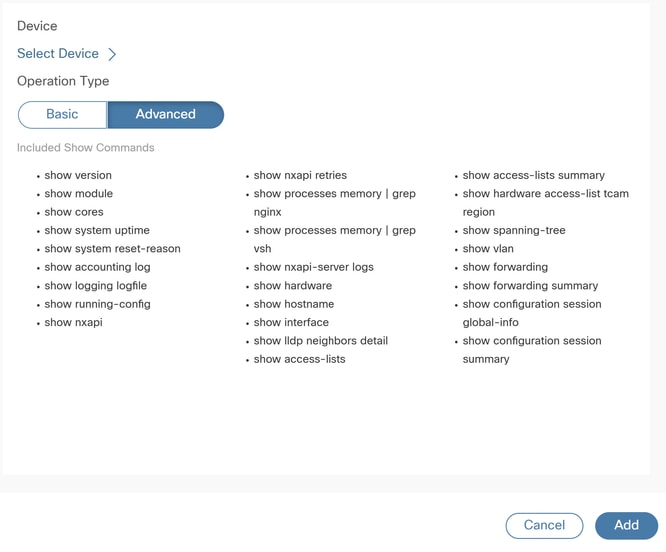
In the System window, click the Select Device option to choose the device you wish to collect a techsupport from. Then, click Basic or Advanced to specify the list of commands you wish to gather.


- Nexus Dashboard Data Broker starts connecting to the switch and start gathering the techsupport files. Please be patient while it finishes.
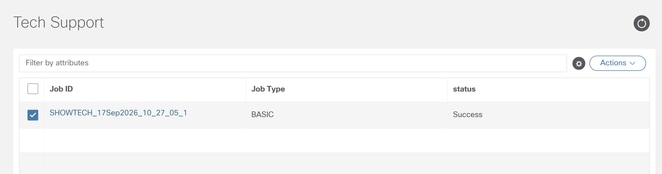
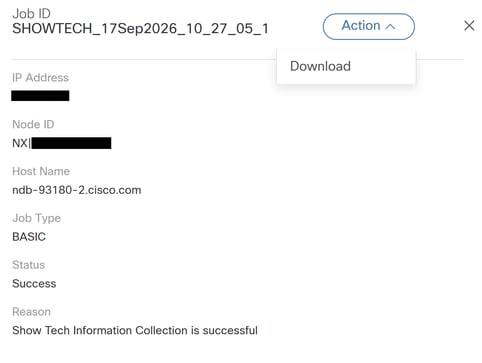
- When you see the Status has changed to Success, click the blue SHOWTECH_xxxxxxx filename. Click Actions dropdown, and click Download.

Collect System Tech Support Files in Cisco Nexus Dashboard Data Broker 3.10.x (Embedded and Centralized)
- The home screen of Cisco Nexus Dashboard Data Broker is shown.
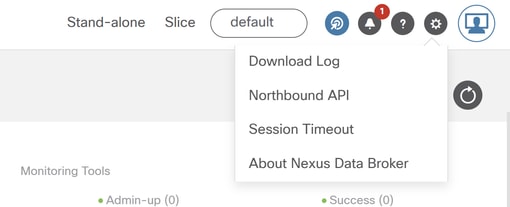
- Click the Settings Cog in the top right.
- Click Download Log from the menu.
Collect System Tech Support Files in Cisco Nexus Dashboard
In Nexus Dashboard 4.2 and later, you can create a Fabric of type Data Broker to help automate the creation of a Data Broker fabric on Cisco Nexus switches for Switched Port Analyzer (SPAN) and Test Access Point (TAP) aggregation.
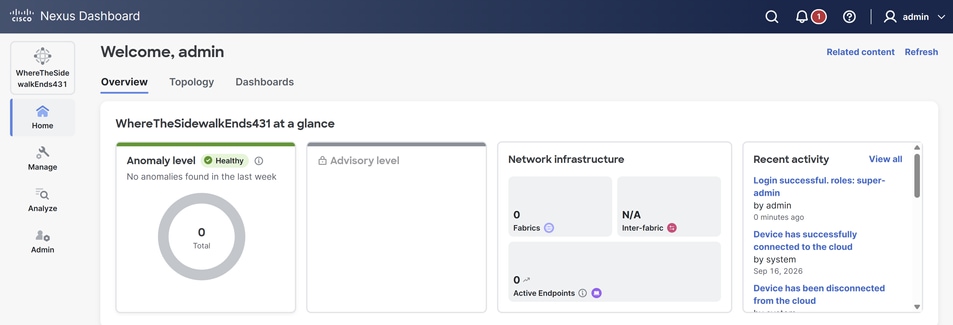
1. The home screen of Nexus Dashboard is shown.
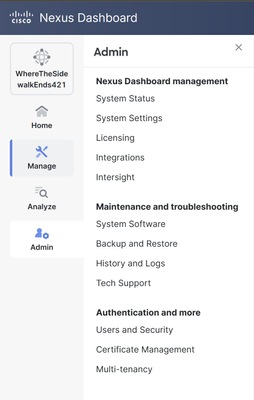
2. Click Admin > Tech Support.
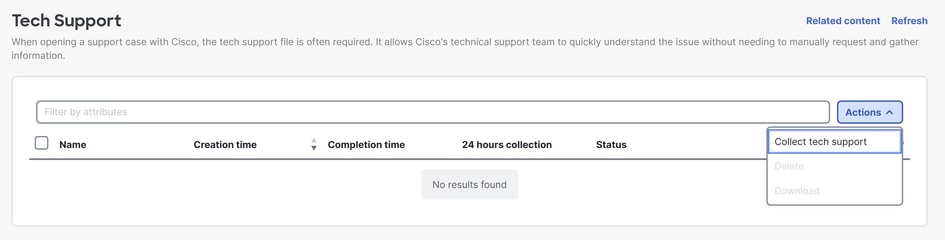
3. Click the Actions dropdown, and select Collect tech support.
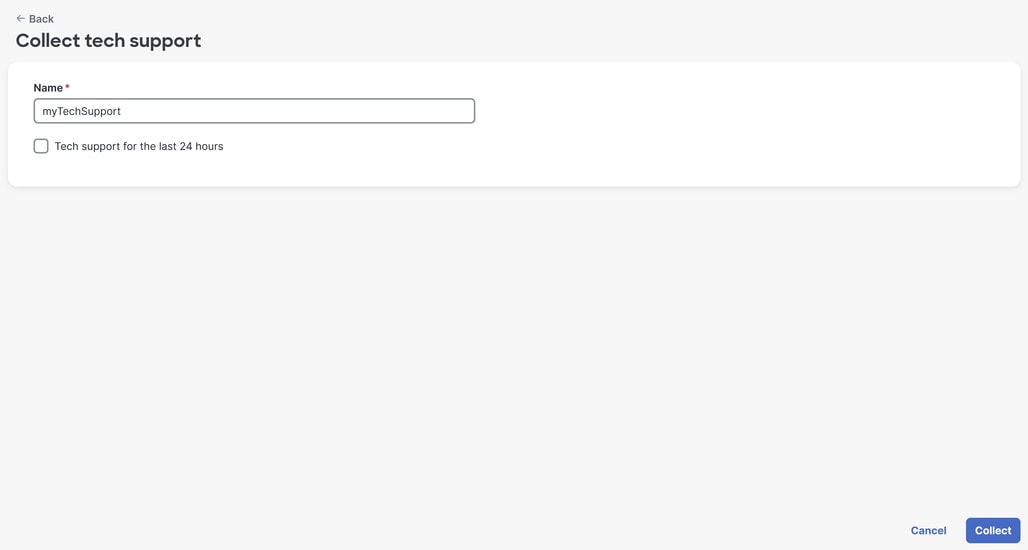
4. Give your techsupport a name, specify if data collected is limited to data collected only in the last 24 hours, and click Collect.
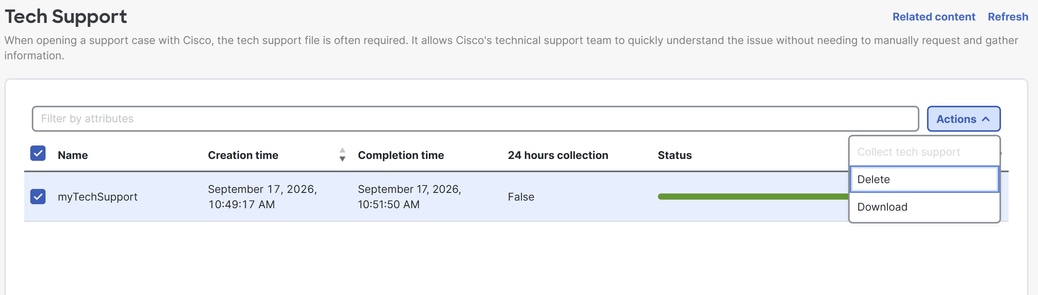
5. When completed, select the Tech Support bundle you want to download. Click the Actions drop down, and click Download.